Category: Email Marketing

  • Email Authentication: SPF, DKIM, DMARC, and BIMI Explained

    Email Authentication: SPF, DKIM, DMARC, and BIMI Explained

    1. SPF (Sender Policy Framework)

    SPF is a list of servers that are allowed to send email on behalf of your domain.

    When you use an email service provider (ESP) like MailerLite, ConvertKit, or ActiveCampaign, they are sending emails from their servers, but using your domain in the From: address. SPF tells receiving inboxes: “Yes, I authorize this specific ESP to send mail for me.”

    How it works

    You publish a TXT record in your domain's DNS settings. It looks something like this:
    v=spf1 include:_spf.google.com include:servers.mcsv.net ~all

    When an email arrives, Gmail checks the sender's IP address against this list. If the IP isn't on the list, the email fails SPF.

    Common SPF mistakes

    • Multiple SPF records: You can only have one SPF record per domain. If you use multiple services (e.g., Google Workspace and Mailchimp), you must combine them into a single record.
    • Too many lookups: SPF has a strict limit of 10 DNS lookups. If your record requires more than 10 lookups to resolve, it will fail.

    2. DKIM (DomainKeys Identified Mail)

    DKIM is a digital signature attached to every email you send.

    While SPF verifies the server the email came from, DKIM verifies that the content of the email was not tampered with while in transit.

    How it works

    Your ESP generates two cryptographic keys: a private key and a public key.

    1. The private key is kept secret by your ESP and used to sign every outgoing email.
    2. The public key is published by you in your DNS settings (usually as a CNAME or TXT record).

    When an email arrives, the receiving server looks up your public key and uses it to verify the signature. If it matches, the email is authentic.

    3. DMARC (Domain-based Message Authentication)

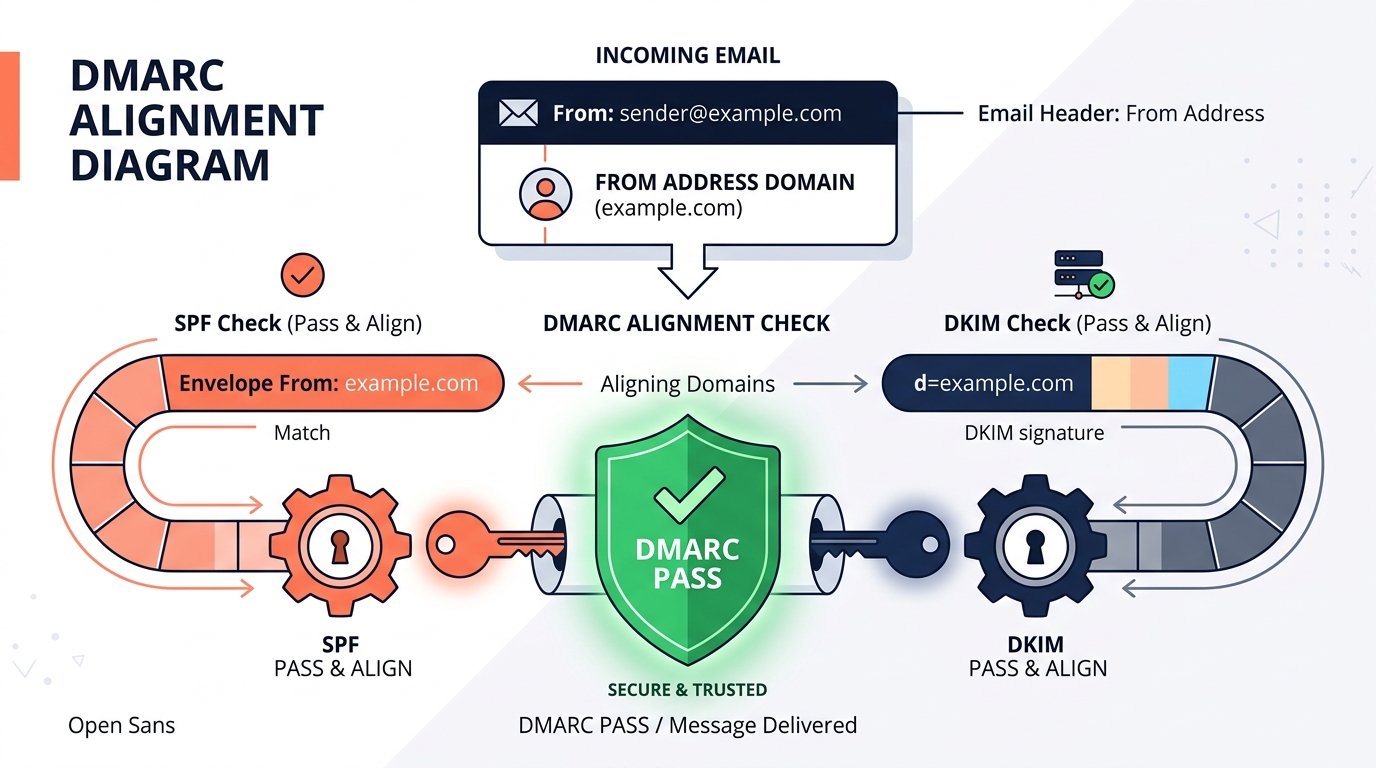
    DMARC Alignment: SPF and DKIM matching the From address domain

    DMARC (Domain-based Message Authentication) is the policy that ties SPF and DKIM together.

    Before DMARC, if an email failed SPF or DKIM, the receiving server had to guess what to do with it. DMARC lets you, the domain owner, tell them exactly what to do.

    How it works

    You publish a TXT record for _dmarc.yourdomain.com.
    DMARC checks two things:

    1. Did the email pass SPF or DKIM?
    2. Alignment: Does the domain that passed SPF or DKIM match the domain in the visible From: address? (This is a critical step where many senders fail, resulting in emails suddenly going to spam).

    If the email fails these checks, your DMARC policy tells the receiver how to handle it:

    • p=none: Do nothing (monitor only).
    • p=quarantine: Send it to the spam folder.
    • p=reject: Block it entirely.

    If you are setting this up for the first time, always start with p=none so you don't accidentally block legitimate mail.

    4. BIMI (Brand Indicators for Message Identification)

    BIMI is the newest addition to the authentication stack. Once you have a strict DMARC policy in place (quarantine or reject), BIMI allows you to display your brand's verified logo next to your messages in the inbox.

    It provides a visual indicator of trust to your recipients. Setting up BIMI requires publishing a SVG logo and, for some providers, a Verified Mark Certificate (VMC).

    The setup checklist

    To ensure your email deliverability isn't penalized by technical failures, verify these three things:

    1. You have exactly one SPF record containing all your sending services.
    2. DKIM is configured and actively signing emails from your custom domain (not your ESP's default domain).
    3. You have a DMARC record published, even if it is just set to p=none.

    Once these are in place, you can move on to the actual factors that dictate inbox placement, like email list building and hygiene.

  • Email List Building and Hygiene: Fixing Deliverability at the Source

    Email List Building and Hygiene: Fixing Deliverability at the Source

    1. Quality over quantity at signup

    Your signup source dictates the long-term health of your entire domain. If you collect bad addresses, you will ruin your reputation before you even send your first real campaign.

    Never buy an email list

    This is the golden rule. Purchased lists are full of spam traps, abandoned inboxes, and people who will immediately mark your email as spam. Sending to a purchased list is the fastest way to get placed on an email blocklist.

    Use Double Opt-in (DOI)

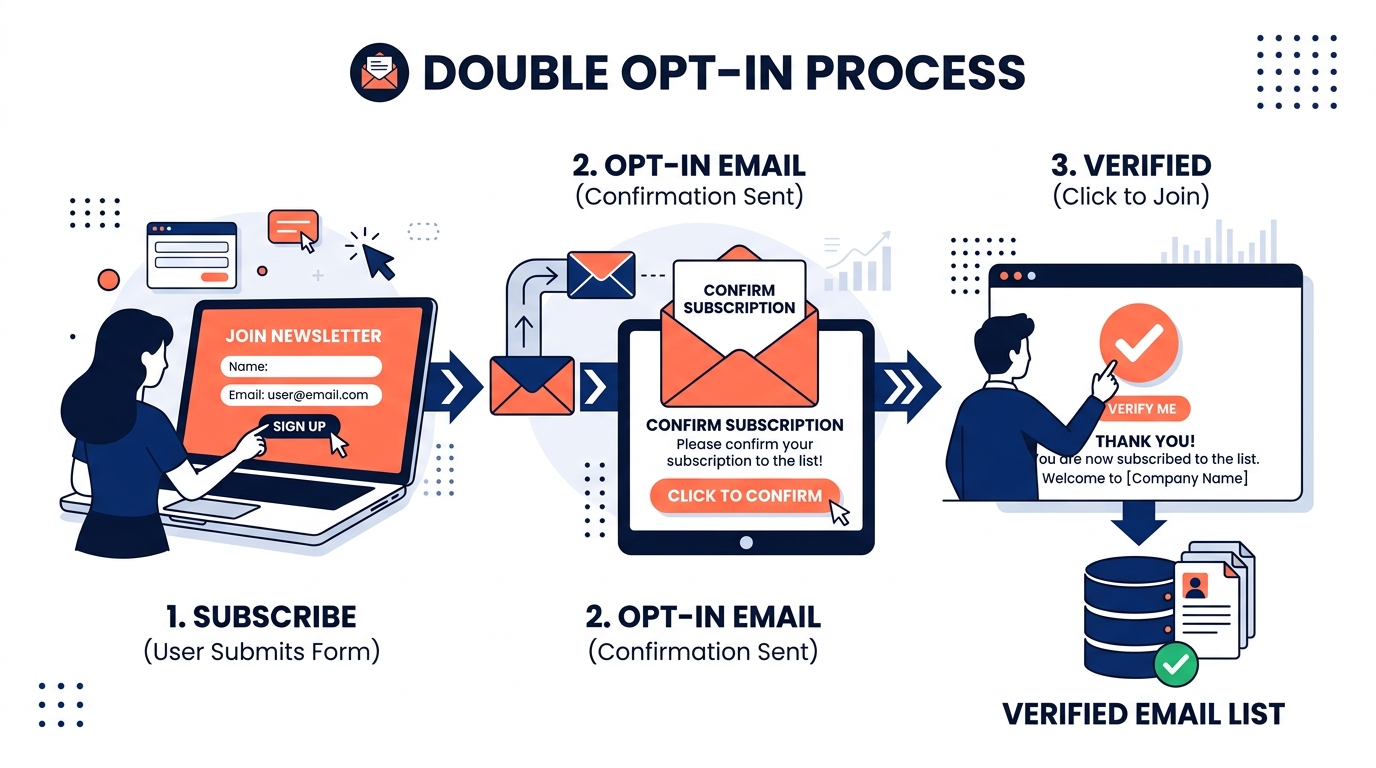
    The Double Opt-In Process: Subscribe, Verify Email, and Confirm
    Single opt-in allows anyone to enter any email address into your form. This means bots can fill your list with fake or malicious addresses.

    Double opt-in requires the user to click a confirmation link sent to their inbox before they are added to your list. This guarantees that the email address is valid, active, and belongs to a real human who actually wants your emails. It reduces your overall signup volume, but dramatically increases your list quality.

    Protect your forms with CAPTCHA

    If you must use single opt-in, ensure your forms are protected by an invisible CAPTCHA to prevent bots from submitting thousands of fake emails overnight (a classic reason for emails suddenly going to spam).

    2. Implement an aggressive sunset policy

    An email list is not a static asset. It decays by about 22% every year as people change jobs, abandon old email accounts, or simply lose interest.

    If you continue to email subscribers who haven't opened your messages in two years, you are telling Gmail: “I send mail to people who ignore me.” Gmail responds by routing your future emails to the spam folder for everyone, including the people who actually want to read them.

    What is a sunset policy?

    A sunset policy is an automated rule that removes unengaged subscribers from your active sending list.

    A standard sunset policy looks like this:

    1. If a subscriber has not opened or clicked an email in 90 days, move them to a "re-engagement" segment.
    2. Send them a final, automated re-engagement campaign (e.g., "Do you still want these emails?").
    3. If they don't click the link to stay on the list, unsubscribe them automatically.

    Deleting subscribers feels painful. You paid for those leads, or worked hard to earn them. But holding onto dead weight will drag down the deliverability of your entire list. Deleting inactive subscribers is the single most effective hygiene practice you can implement.

    3. Monitor bounces and complaints

    Inbox providers use two major negative signals to judge your reputation: bounces and complaints.

    Keep bounce rates under 2%

    A "hard bounce" happens when you send an email to an address that no longer exists. If your bounce rate exceeds 2%, inbox providers assume you are scraping emails or not cleaning your list. Use a list verification tool (like NeverBounce or ZeroBounce) to clean your existing list before your next send.

    Keep spam complaints under 0.1%

    A spam complaint happens when a user clicks the "Mark as Spam" button. If your complaint rate crosses 0.1%, Gmail will start filtering you. If it crosses 0.3%, you are in crisis territory.

    The easiest way to lower your complaint rate is to make your unsubscribe link massive and obvious. If someone wants to leave, let them leave. A click on "Unsubscribe" is a neutral signal. A click on "Mark as Spam" is a highly damaging signal.

    The payoff of good hygiene

    A clean list of 5,000 highly engaged subscribers will generate more revenue and better email copywriting results than a dirty list of 50,000 people.

    By building your list with double opt-in and aggressively pruning inactive subscribers, you build an ironclad sender reputation that guarantees your messages actually reach the inbox.

  • Email Copywriting: What Happens After You Reach the Inbox

    Email Copywriting: What Happens After You Reach the Inbox

    1. The subject line is the envelope

    Your subject line has one job: to get the email opened. It is not there to sell the product, explain the offer, or summarize the newsletter.

    The biggest mistake senders make is writing subject lines that look like marketing slogans (e.g., “Unleash Your Potential with Our New Course!”). When a reader sees a slogan in their inbox, their brain immediately categorizes it as an ad, and they delete it.

    How to write better subject lines:

    • Write like a friend: Use sentence case instead of title case (e.g., “A quick question about your course” instead of “A Quick Question About Your Course”).
    • Leverage curiosity: The subject line should create an "information gap" that can only be closed by opening the email.
    • Keep it short: Most email opens happen on mobile devices. Subject lines longer than 45 characters will get cut off on a smartphone screen.

    2. One email, one goal

    When a reader opens your email, they should immediately understand what you want them to do.

    If your email contains a link to a new blog post, a prompt to follow you on Twitter, a discount code for a product, and a request for a review, the reader will do none of them. This phenomenon is called decision fatigue.

    The Rule of One:

    • Every email should have one primary idea.
    • Every email should have one clear call-to-action (CTA).
    • If you have three different things to say, write three different emails.

    3. Format for scanning, not reading

    Nobody reads emails word-for-word. They scan them. If your email opens with a massive, dense block of text, the reader will immediately close it.

    You need to make your emails visually effortless to consume.

    • Short paragraphs: Keep paragraphs to one or two sentences.
    • Use formatting: Use bold text to highlight the most important sentence in a paragraph. If someone only reads the bold text, they should still understand the core message of the email.
    • Bullet points: If you are listing more than two things, use bullet points.

    4. Sell the click, not the product

    In email marketing, the email itself rarely makes the sale. The goal of the email is to generate enough curiosity, desire, and urgency to get the reader to click the link. The landing page makes the sale.

    Don't try to explain every single feature and benefit of your product in the email body. Give the reader just enough information to make them realize that their life will be slightly better if they click the link.

    Copywriting impacts your sender reputation

    Email copywriting and technical deliverability are intimately connected.

    If you write great emails that people reply to, click on, and forward, inbox providers will view you as a highly trusted sender, which prevents your emails from suddenly going to spam.

    Good copywriting creates good engagement, and good engagement creates bulletproof deliverability.

  • Email Blocklists: How to Check and Get Removed

    Email Blocklists: How to Check and Get Removed

    How to check if you are on a blocklist

    There are hundreds of blocklists in existence, but only a handful actually matter to your email deliverability.

    Providers like Spamhaus, Spamcop, and Barracuda carry the most weight. If you are listed on one of these, major inbox providers will start bouncing your emails.

    To check your status, you don't need to check each site individually. Use an aggregate tool:

    1. Go to a free blocklist checker like MXToolBox.
    2. Enter your sending domain (e.g., yourdomain.com).
    3. Enter your sending IP address (you can find this in the headers of your emails, or ask your ESP).

    If the tool shows green checkmarks across the board, blocklists are not your problem. If you see red marks next to major lists like Spamhaus or Spamcop, you have found the issue.

    A warning about minor blocklists

    Many aggregate tools will flag you on minor, obscure blocklists (like UCEPROTECT Level 3). Inbox providers largely ignore these minor lists. Do not panic or pay a removal fee to an obscure blocklist. Focus only on the tier-one lists.

    Why did you get blocklisted?

    Blocklists do not randomly target senders. If you are listed on a tier-one list, your domain or IP exhibited behavior that looks exactly like a spammer.

    The three most common triggers are:

    1. Hitting spam traps: You emailed addresses that exist solely to catch senders who scrape the web or buy lists.
    2. High spam complaints: Too many real users clicked the "Mark as Spam" button on your recent campaigns.
    3. Compromised accounts: Your email account or server was hacked and used to send outbound spam without your knowledge.

    How to request blocklist removal (Delisting)

    Getting removed from a blocklist is a straightforward process, provided you actually fix the underlying problem first.

    Step 1: Stop sending

    Do not attempt to push more mail through while you are listed. It will only increase your negative reputation. Pause all campaigns.

    Step 2: Fix the root cause

    If you don't fix the problem, you will be relisted within days of your removal.

    Step 3: Submit the delisting request

    Go directly to the website of the specific blocklist that flagged you (e.g., Spamhaus.org). Follow their specific removal process.

    Most will ask you to fill out a short form explaining:

    • How you collect your email addresses.
    • Why you believe you were listed.
    • What specific steps you have taken to ensure it won't happen again.

    Be honest, concise, and professional. Blocklist operators are human. If you admit a mistake (e.g., "We sent a re-engagement campaign to a 3-year-old list without verifying it first") and show you have deleted the offending segment, they are much more likely to remove you.

  • How to Stay Out of the Gmail Promotions Tab

    How to Stay Out of the Gmail Promotions Tab

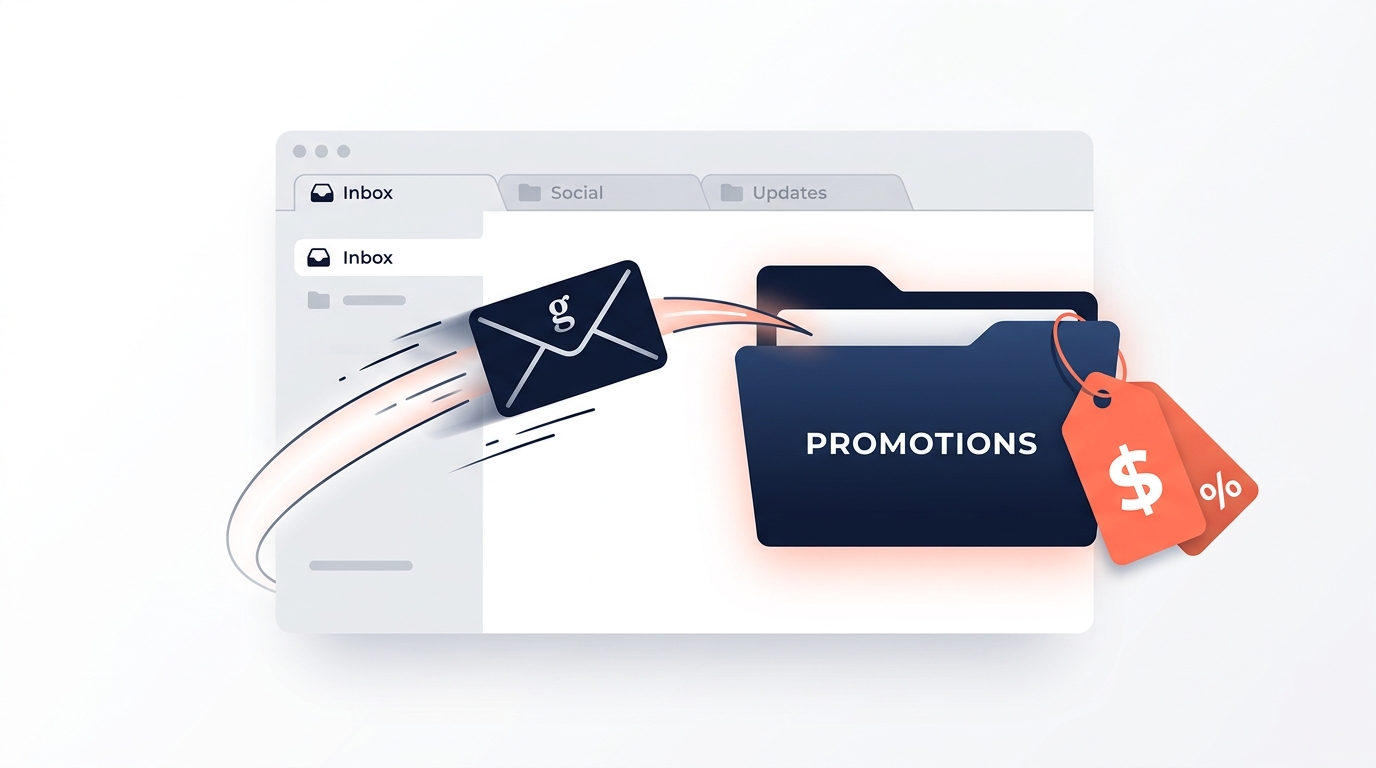
    Why emails go to the Promotions tab

    Google uses a machine learning algorithm to categorize incoming mail. It looks for signals that an email is a commercial broadcast rather than a personal message.

    If your email looks, sounds, and behaves like a commercial broadcast, it goes to Promotions.

    Here are the three biggest signals the algorithm looks for:

    1. HTML-heavy templates

    Personal emails from friends don't have multi-column layouts, background images, and heavily styled buttons. If your email is built using a drag-and-drop template builder from your ESP, the underlying HTML code screams "commercial sender."

    2. The image-to-text ratio

    If your email is primarily composed of large header images and product photos with very little text, Google categorizes it as a promotion.

    3. Too many links

    A personal email usually contains zero, one, or maybe two links. A standard e-commerce newsletter contains links to products, social media icons, a view-in-browser link, and a footer navigation. The more links you include, the higher the chance of landing in Promotions.

    How to land in the Primary tab

    If you want to land in the Primary tab, you need to strip away the commercial signals.

    1. Use plain text (or "fake" plain text)

    The single most effective way to reach the Primary tab is to abandon heavily designed templates. Send emails that look like they were typed out in Gmail.

    You don't have to use actual raw plain text. You can use HTML to bold text or add hyperlinks, but remove the structural elements. No background colors, no header graphics, no complex tables. This approach isn't just good for deliverability; it is also highly effective for email copywriting, as it feels much more personal to the reader.

    2. Limit your links to one or two

    Only link to the primary call-to-action. Remove the five social media icons from your footer. They add unnecessary links and nobody clicks them anyway.

    3. Avoid promotional trigger words (conditionally)

    Words like "Sale," "Discount," and "Buy now" don't send you to the spam folder anymore, but they do heavily influence the Promotions tab routing. If you must use them, keep them out of the subject line.

    4. Ask subscribers to move you

    The absolute strongest signal you can give Gmail is a direct user action.

    In your welcome email, ask your subscribers to drag your email from the Promotions tab into the Primary tab. When a user does this, Gmail will ask if they want to do it for all future messages from your address. If they click yes, your emails will always land in their Primary inbox, regardless of how many links or images you include.

    When you shouldn't fight the Promotions tab

    Sometimes, the Promotions tab is exactly where you belong.

    If you run an e-commerce brand sending out a visual catalog of new products, your subscribers expect that to be in the Promotions tab. If you try to force a highly promotional e-commerce blast into the Primary tab by stripping out images, your conversions will actually drop, because people browse the Promotions tab specifically when they are in a buying mindset.

    Focus your energy on reaching the Primary tab for newsletters, relationship-building emails, and personal announcements. Let your product catalogs live in the Promotions tab.

  • Why Your Emails Suddenly Went to Spam (And How to Fix It)

    Why Your Emails Suddenly Went to Spam (And How to Fix It)

    1. You hit a spam trap or blocklist

    The fastest way to ruin a good sender reputation is to hit a spam trap.

    Spam traps are inactive email addresses that providers keep active specifically to catch senders who aren't practicing good list hygiene. If you send an email to a trap, it tells the provider that you are either buying lists or failing to remove inactive subscribers.

    The symptom: A sudden, steep drop in deliverability across multiple providers, often accompanied by a spike in your bounce rate.

    The fix:

    • Check if your domain or IP is listed on major blocklists. (Read our guide on email blocklists and how to get removed).
    • Immediately pause sending to your full list.
    • Run your list through an email verification tool to remove invalid addresses.
    • Suppress anyone who hasn't opened an email in the last 90 days.

    2. Your DMARC alignment broke

    If you recently changed your sending domain, switched email service providers (ESPs), or modified your DNS settings, you may have broken your email authentication.

    Specifically, you may have broken DMARC alignment. This happens when your SPF and DKIM records are technically passing, but the domain they are signing for no longer matches the domain in your From: address.

    The symptom: Your emails report as "delivered" in your ESP, but they fail DMARC in Google Postmaster Tools and are sent straight to spam.

    The fix:

    • Go to your ESP's domain authentication settings.
    • Verify that your DKIM is signing under your exact domain, not your ESP's default domain.
    • Ensure your SPF record is updated and does not have multiple entries.

    3. A recent campaign triggered mass complaints

    Providers like Gmail track your spam complaint rate closely. Google’s strict guideline is that your complaint rate should never exceed 0.3%.

    If you recently sent a campaign that was overly aggressive, sent too frequently, or sent to a massive unengaged segment (like a Black Friday blast), you may have crossed this threshold. When enough people click the "Mark as Spam" button, Gmail will automatically route your future emails to the spam folder.

    The symptom: A spike in complaints on a recent campaign, followed by a sudden drop in open rates on subsequent campaigns.

    The fix:

    • Stop sending to unengaged subscribers immediately.
    • Segment your list and only send to people who have opened or clicked an email in the last 30 days.
    • Ensure your unsubscribe link is prominent. It is much better for someone to unsubscribe than to mark you as spam.

    4. You drastically changed your sending volume

    If you usually send 5,000 emails a week and suddenly blast 100,000 emails in a single day, inbox providers will flag the activity as suspicious.

    Spammers operate in unpredictable spikes. Legitimate businesses have predictable sending patterns.

    The symptom: You recently ran a massive promotion or imported a huge list, and your open rates immediately collapsed.

    The fix:

    • Always warm up new lists or large segments gradually.
    • If the damage is already done, throttle your sending back down. Return to a smaller, highly engaged segment and slowly increase your volume over 3 to 4 weeks.

    Recovery takes time

    When your emails suddenly go to spam, fixing the root cause will not instantly restore your open rates.

    Your reputation score takes weeks to rebuild. You need to prove to providers that you are a responsible sender by consistently delivering emails that people actually want to read, open, and reply to. Focus on your most engaged subscribers, keep your list clean, and watch your Google Postmaster Tools dashboard as your reputation slowly climbs back to green.

  • Why Authenticated Emails Still Land in Spam

    Why Authenticated Emails Still Land in Spam

    The short answer

    Authentication is a door key, not an invitation. SPF, DKIM, and DMARC let Gmail verify that a message genuinely came from your domain. They say nothing about whether recipients open, reply, ignore, or report your email — and that behavioural evidence is what actually decides placement.

    If you're authenticated and still in spam, the cause is almost always one of these:

    1. Reputation — your domain has a history, and it isn't good
    2. Engagement — you're mailing people who don't read you
    3. List quality — how you collected addresses is poisoning everything downstream
    4. Sending pattern — your volume or cadence looks automated in the wrong way
    5. Alignment — your records "pass" individually but don't align, which is a different failure that looks identical from the outside

    The rest of this guide takes each one in turn, and gives you a symptom-to-cause table so you can find yours in about ten minutes.

    What authentication actually proves

    Three records do three separate jobs, and it's worth being precise about them because the confusion behind "I set it all up and nothing changed" usually starts here.

    SPF (Sender Policy Framework) is a DNS record listing which mail servers are allowed to send on behalf of your domain. When a message arrives, the receiving server checks the sending IP against that list. SPF answers: is this server allowed to send as this domain?

    DKIM (DomainKeys Identified Mail) attaches a cryptographic signature to each message. The receiving server validates that signature against a public key in your DNS. DKIM answers: did this message actually come from this domain, and was it altered in transit?

    DMARC (Domain-based Message Authentication, Reporting and Conformance) ties the two together and tells receivers what to do when they fail. DMARC answers: if SPF or DKIM doesn't check out, should you deliver, quarantine, or reject?

    Notice what none of them answer: should this person receive this email?

    That question is decided somewhere else entirely, by evidence Gmail has been collecting about your domain for as long as you've been sending. Authentication gets your message evaluated. It doesn't decide the evaluation.

    The one-line version: authentication is identity, not reputation. Passing it means Gmail knows who you are — including when who you are is someone whose mail people delete unread.

    The alignment trap

    There's a specific failure worth naming here, because it produces exactly the symptom this article is about: everything reports as passing, and mail still fails.

    DMARC requires alignment, not just a pass. The domain in your visible From: address has to match the domain that SPF or DKIM validated. If your From: says hello@yourbrand.com but your ESP is signing DKIM under mail.esp-provider.com, both SPF and DKIM can technically pass while DMARC still fails — because nothing aligns with the domain your recipient actually sees.

    Most ESPs default to their own signing domain until you configure a custom sending domain. That single unfinished setup step accounts for a large share of the "but it all says pass" cases.

    Where you fix it depends on your platform, but the setting is always in the same conceptual place — domain authentication, not campaign settings. In MailerLite, for example, it's Account settings → Domains → Add domain, which gives you three records to publish: DKIM as a CNAME, SPF as a TXT, and a verification TXT. You then click Authenticate, and Check DNS Records to confirm. Until that's done and showing as authenticated, you're sending under the platform's identity rather than your own — and DMARC alignment cannot pass no matter how correct your other records look.

    Check alignment specifically, not just the three green ticks.

    Full record syntax, the alignment modes, and a staged DMARC rollout are covered in the email authentication guide.

    The three factors that decide inbox placement
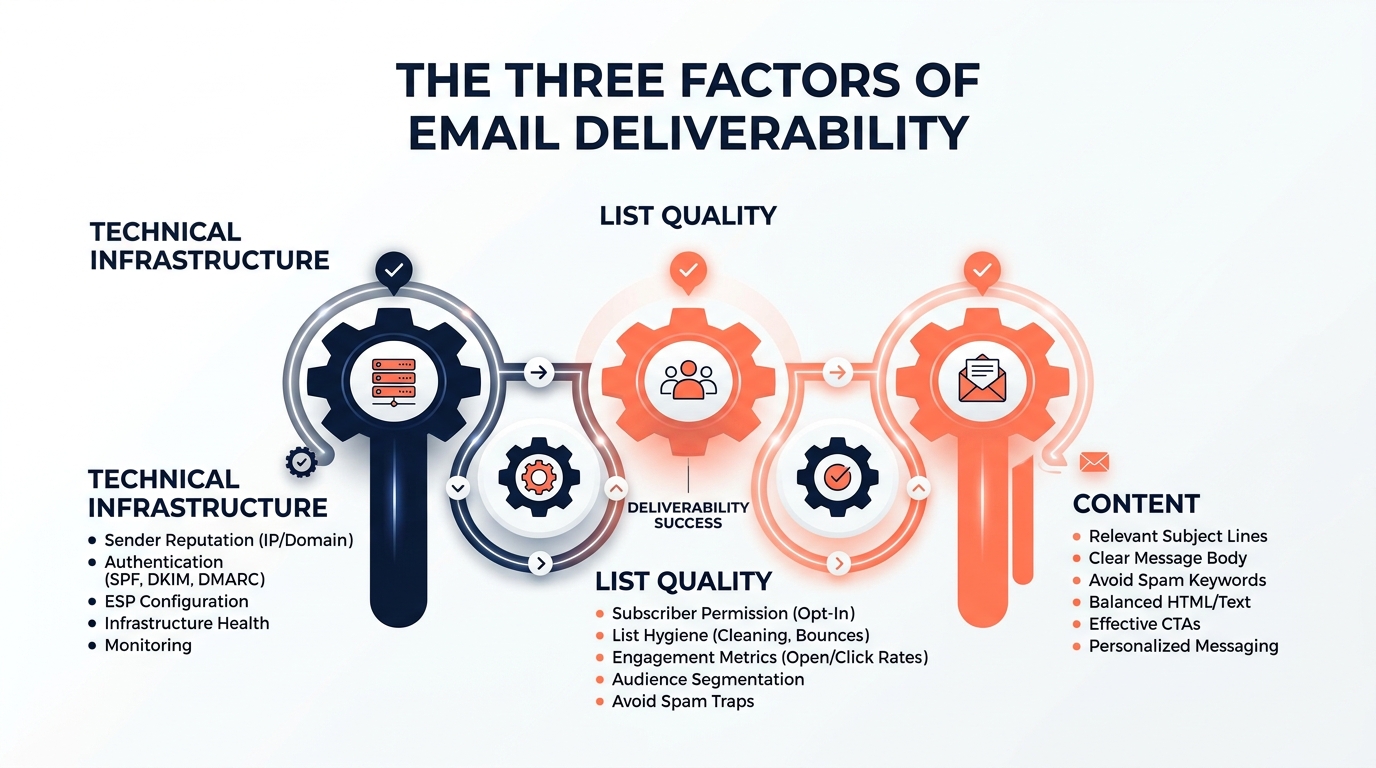
    The three factors of email deliverability: Technical Infrastructure, List Quality, and Content

    Inbox providers ask one question about every message they receive: do people want this? They answer it with hundreds of signals, but nearly all of them roll up into three factors you directly control.

    The important part: fail any one and the other two can't save you. A perfectly authenticated email to a list of people who never open anything will still get filtered. Beautiful copy sent from a domain with no reputation will still get filtered.

    Factor 1 — Technical infrastructure: "Can we trust who you are?"

    • Authentication — SPF, DKIM, and DMARC, aligned. Since 2024, this is mandatory for bulk senders at Gmail, Yahoo, and Microsoft. Failures now mean rejection, not just filtering.
    • Domain and IP reputation — every domain carries a reputation score with each provider. New domains have none, which is not the same as a good one.
    • Valid DNS and TLS — forward and reverse DNS must resolve, and connections must be encrypted. Your ESP usually handles TLS; reverse DNS is worth checking if you send from your own infrastructure.
    • Consistent sending patterns — nothing for a month, then 100,000 messages in a day, looks like exactly what it looks like.

    This is the factor everybody fixes first, because it's the one with a checklist. It's also the one that's usually already fine by the time someone starts searching for why their emails are in spam.

    Factor 2 — List quality and engagement: "Do people want your mail?"

    • How you collected the addresses — bot-filled forms, incentive-only signups, and anything purchased poisons everything downstream. This is the single biggest predictor of long-term deliverability, and it's decided before you send anything.
    • Who you send to — mailing subscribers who've been inactive for six months tells Gmail "this sender mails people who ignore them." Engagement rate is the strongest single reputation signal there is.
    • Hygiene — bounces, spam traps, and dead addresses accumulate on every list, including well-built ones.

    If you're authenticated and struggling, start here. This is where most of the problem lives.

    Signup source quality, segmentation, and the hygiene routine are covered in email list building and hygiene.

    Factor 3 — Content and sending behaviour: "Does this look like spam?"

    • Formatting and structure — image-only emails, broken HTML, mismatched text-to-link ratios
    • Link reputation — you inherit the reputation of every domain you link to, including shorteners and affiliate redirects
    • Sending cadence — sudden volume spikes, irregular schedules, and abrupt frequency changes
    • Sameness at scale — filters don't punish AI-written text; they punish thousands of near-identical messages with no variation

    Content matters less than most people think and more than the "it's all reputation" crowd admits. It's rarely the sole cause, and it's often the accelerant.

    Which factor is broken? A symptom-to-cause diagnostic

    Work down this table. Match your symptom, check the likely cause first, and stop when you find it. This ordering is deliberate — it puts the fastest-to-confirm causes at the top.

    Symptom Most likely cause Where to look first
    Nothing arrives at all; delivered count collapsed Authentication rejection at the server Bounce logs for SMTP errors like Microsoft's 550 5.7.515 Access denied
    Everything reports "pass" but mail still fails DMARC Alignment, not authentication Whether DKIM signs under your domain or your ESP's
    Gmail opens at 8%, Outlook at 30% Gmail specifically has flagged you Google Postmaster Tools compliance status and spam rate
    Opens fell from ~25% to ~12% over a few sends Spam foldering, reputation-driven Recent sends to unengaged segments; complaint rate
    Delivered fine, but almost nobody opens Promotions tab, not spam Seed test — check the tab, not just the inbox
    New domain, low volume, immediate filtering No reputation yet, sent too fast Volume ramp and who you sent to first
    Bounce rate above 2% Dirty or inherited list Signup source and last verification date
    Complaint rate above 0.1% List or expectation mismatch What you promised at signup vs. what you send
    Transactional mail (receipts, resets) failing Wrong sending path entirely Whether your site sends via PHP mail instead of SMTP

    That last row catches more people than you'd expect — order confirmations and password resets fail for structurally different reasons than marketing campaigns do. If that's your situation, WordPress emails not sending covers it specifically.

    First, confirm it's actually happening

    Before changing anything, find out where your emails genuinely land. You don't need paid software for this.

    The 60-second seed test:

    1. Create two or three fresh test inboxes — one Gmail, one Outlook or Hotmail, one Yahoo if your audience uses it.
    2. Subscribe them to your list, or add them in your ESP.
    3. Send your next campaign with those addresses included.
    4. Open each one and look, without searching.

    What you see maps directly to what's wrong:

    • Primary inbox — good.
    • Promotions tab (Gmail) — technically delivered, largely invisible. Expect open rates roughly halved. Not a reputation emergency. See how to stay out of the Gmail Promotions tab.
    • Spam or Junk folder — an active reputation problem. Fix it before you do anything else.
    • Nothing arrives — critical. Non-compliant bulk mail is now rejected at the server by Gmail and Microsoft. Check your bounce logs for SMTP errors.

    Two caveats that matter. Test with inboxes that have no history with your brand — your personal Gmail that opens everything you send will always show the inbox, which is a false positive. And because seed inboxes have no engagement history, they run slightly pessimistic. Real subscribers who love you often place better than seeds suggest.

    Treat the seed test as a smoke alarm, not a precision instrument.

    The professional-grade check

    Set up Google Postmaster Tools. It's free, and it shows your compliance status, spam rate, and authentication results as Gmail itself sees them.

    One update worth knowing: Google retired the old Domain Reputation and IP Reputation grades in September 2025. If you remember the High / Medium / Low / Bad ladder, it's gone. What replaced it is more useful — a plain-language Pass / Needs Work compliance verdict against Gmail's actual published requirements, alongside the spam-rate chart that was always the more diagnostic number.

    Yahoo offers a comparable Sender Hub. Microsoft has SNDS.

    Reading each chart properly, and what to do at each threshold, is covered in how to read Google Postmaster Tools.

    What "delivered" in your dashboard actually means

    Here's the distinction that causes more confusion than any other metric in email.

    Delivery rate means the receiving server accepted the message. That's all. It says nothing about which folder it went into.

    Deliverability — or more precisely, inbox placement — means the message reached the inbox where someone might read it.

    Your ESP reports the first one, calls it "delivered," and shows you 99%. Meanwhile every one of those messages could be sitting in spam. A message routed to the junk folder was still delivered. This is why "my dashboard says 99% delivered" and "my emails go to spam" are both true at the same time, and why so many senders don't discover a problem for weeks.

    The number that actually tells you something is your open rate broken down by provider. Gmail at 8% while Outlook sits at 30% is not a copy problem. It's Gmail specifically deciding something about you.

    The numbers that decide

    These are the lines providers themselves draw. They apply to everyone, regardless of industry, list size, or how good your content is.

    Metric Healthy Warning Emergency
    Spam complaint rate Under 0.05% 0.05–0.1% Over 0.1% (0.3% = crisis)
    Bounce rate Under 1% 1–2% Over 2%
    Unsubscribe rate Under 0.3% 0.3–0.5% Over 0.5%
    Delivery rate Over 99% 98–99% Under 98%
    Authentication All pass and aligned Any warning Any fail

    If you're outside the healthy column on any row, that's a real problem no matter what your industry benchmark says. Fix it before optimising anything else.

    On the complaint rate specifically: Google's published guidance is to keep spam rates below 0.1% and to never let them reach 0.3%. Cross 0.3% and you lose eligibility for Gmail's mitigation support until your rate holds below the line consistently. Complaint rate is also the best early-warning signal you have — it moves before your revenue does.

    Are your engagement numbers actually bad?

    Context, before you panic. These are orientation ranges, not grades.

    Business type Typical open rate Typical click rate (of delivered)
    Ecommerce / retail 25–35% 1.5–3%
    Creator / newsletter 35–50% 3–8%
    Coaching / courses 30–45% 2–6%
    B2B / SaaS 25–40% 2–5%
    Nonprofit 30–40% 2–4%
    Transactional (receipts, resets) 60–90% Varies

    Anything below 60% on transactional mail suggests a delivery problem, not an engagement one — nobody ignores their own password reset.

    How to actually use these numbers:

    • Compare yourself to yourself first. Your own 90-day trend beats any industry average. A newsletter that opened at 48% and now opens at 31% has a problem, even though 31% still looks respectable on this page.
    • Segment before judging. Your full-list open rate is an average of your superfans and your zombies. Look at your last-90-day engaged segment separately. If that is sliding, you have a genuine placement problem. If only the full-list number is sliding, you have list decay.
    • Split by provider. Provider-level splits are the single most diagnostic view your ESP offers, and most people never open that report.

    And one caution on open rates generally: Apple's Mail Privacy Protection inflates them by pre-loading images for a large share of recipients. Open rate is now a directional signal, not a measurement. Clicks on your engaged segment and revenue per email sent are the numbers that survive contact with reality.

    Why reputation is the thing authentication can't buy

    This is the heart of it.

    Sender reputation is a score each provider maintains about your domain, built from how recipients have historically behaved toward your mail. Opens, replies, deletions without opening, moves to spam, moves out of spam, unsubscribes — all of it accumulates.

    Authentication is the price of admission. Reputation is what actually gets you seated.

    Three things follow from that, and they explain most of the confusing cases:

    A new domain has no reputation, which is not the same as a good one. With no history, providers apply caution by default. Sending 5,000 messages on day one from a domain that has never sent anything reads as exactly what a spammer would do. This is why warm-up exists, and why "I set up authentication perfectly on my brand-new domain and everything went to spam" is completely normal rather than mysterious.

    Reputation is per-provider. Gmail's opinion of you and Microsoft's are separate, formed from separate evidence, and can differ sharply. This is why the provider split matters so much diagnostically.

    Reputation is earned back slowly and lost quickly. One aggressive send to a large unengaged segment can undo months. Recovery is measured in weeks, and it works by rebuilding positive evidence — sending to people who genuinely want your mail until the ratio shifts back.

    The mechanism is worth internalising: engagement rate is the strongest single input to reputation. Which means the most effective deliverability fix available to most senders isn't technical at all. It's mailing fewer people, more of whom want to hear from you.

    That feels backwards. Sending to a smaller segment to improve results sounds like giving up reach. But the arithmetic is straightforward — a 20,000-person send at 12% opens puts your message in front of 2,400 people and damages your reputation. A 6,000-person send to engaged subscribers at 40% opens puts it in front of 2,400 people and improves your reputation. Same reach today, opposite trajectory tomorrow.

    The order to fix things in

    Sequence matters here more than effort does. Fixing things in the wrong order wastes weeks, because some fixes can't take effect until earlier ones do.

    1. Confirm the problem is real, and locate it. Seed test plus Postmaster Tools. Know whether you're in spam, in Promotions, or being rejected outright — these need different responses. Don't skip this. A surprising number of "deliverability crises" turn out to be Promotions-tab placement or an Apple MPP artifact.

    2. Stop making it worse. Pause broadcasts to your full list. Every send to an unengaged segment while you're already flagged deepens the hole. This is the single highest-leverage thing you can do in the first hour, and it costs nothing.

    3. Fix authentication properly — including alignment. Not just "the records exist." Verify that DKIM signs under your domain, that SPF has one record rather than several left over from a migration, and that DMARC alignment passes. Full setup walkthrough →

    4. Clean the list. Remove invalid addresses. Suppress subscribers with no engagement in 180+ days. This will feel like deleting your business. It isn't — you're removing people who were never going to buy and were actively costing you placement with the people who might.

    5. Rebuild positive signals deliberately. Send only to your most engaged segment. Plain, personal, reply-inviting emails outperform designed campaigns here. Replies are among the strongest positive signals available to you.

    6. Widen back out gradually. Expand from 30-day openers to 60-day to 90-day, watching complaint rate at each step. If it rises, stop and hold.

    7. Then, and only then, resume normal sending — with monitoring. The mistake that undoes a successful recovery is going straight back to the sending pattern that caused the problem.

    Most recoveries take three to six weeks. Anyone promising faster is either selling something or hasn't done one.

    A note on what's not in this article. The day-by-day recovery schedule, the segment-widening thresholds, the blocklist removal request templates, the 100-point audit scorecard, and the role-specific playbooks for ecommerce, creators, coaches, agencies, and cold outreach are in The Email Deliverability Playbook. What's above is the complete diagnosis. The book is the complete procedure.

    Frequently asked questions

    Why are my emails going to spam even with SPF and DKIM set up?
    Because authentication proves identity, not desirability. SPF and DKIM confirm that a message genuinely came from your domain — they don't tell Gmail whether recipients want it. Placement is decided mostly by sender reputation and engagement history. If you're authenticated and still filtered, check DMARC alignment first, then look at who you've been mailing.

    What is a good email deliverability rate?
    Aim for inbox placement above 95% and a delivery rate above 99%. More usefully, watch the thresholds that trigger filtering: complaint rate under 0.1%, bounce rate under 2%, unsubscribe rate under 0.5%. Those lines matter more than any single deliverability percentage.

    Is deliverability the same as delivery rate?
    No, and the difference is why so many problems go undetected. Delivery rate measures whether the receiving server accepted your message. Deliverability measures whether it reached the inbox. A message sitting in the spam folder counts as delivered.

    How long does it take to fix email deliverability?
    Technical fixes like authentication take effect within 24–48 hours of DNS propagation. Reputation recovery takes three to six weeks, because it requires accumulating new positive engagement evidence to outweigh the old negative evidence. There's no way to shortcut the second part.

    Will changing my ESP fix a spam problem?
    Usually not. Reputation attaches primarily to your sending domain, and your domain moves with you. Switching platforms without fixing the underlying list and engagement problems typically reproduces the same result on a new bill. Switch for features, deliverability tooling, or support — not as a reputation reset.

    Does sending less often improve deliverability?
    Frequency itself is neutral; mismatch with expectations is what hurts. Sending daily to people who signed up for a daily email is fine. Sending weekly to people who expected monthly generates complaints. If you're currently flagged, sending less to fewer, more engaged people is one of the fastest available fixes.

    Do spam trigger words still matter?
    Far less than the folklore suggests. Modern filters are classifiers trained on behaviour, not keyword blocklists. "Free" in a subject line from a sender with strong engagement lands fine. The same word from a domain with a 0.4% complaint rate doesn't — and the word wasn't the reason.

    Can one bad campaign ruin my sender reputation?
    A single aggressive send to a large unengaged segment can absolutely cause a measurable reputation drop — this is the classic Black Friday pattern. It's recoverable, but recovery takes weeks of deliberate rebuilding, which is why the send is rarely worth it.

    What to do next

    Run the seed test. It takes a minute, and it tells you which of the three factors you're actually dealing with — which determines everything you do afterward.

    If it comes back clean and you're still worried, check your open rate split by provider. If Gmail is materially below your other providers, you have a Gmail-specific reputation issue, and Postmaster Tools will tell you why.

    If it comes back in spam, don't start changing settings. Start by pausing broadcasts, then work steps 3 through 7 above in order.

    Free: The 60-Minute Email Authentication Fix — a checklist that walks you through verifying SPF, DKIM, DMARC, and alignment on your own domain in under an hour.

    Go deeper: The Email Deliverability Playbook — 36 chapters, 10 templates, a 14-day implementation plan, a 100-point audit scorecard, and role-specific playbooks for ecommerce, creators, coaches, agencies, and cold outreach.

    Related guides